Another day, another iPhone useful guide for those who have recently found duplicate contacts on their iPhone due to any issues. Here is how you easily can merge, remove or delete duplicate contacts on iPhone running iOS 26 without third party app.
How many people do you contact in a week? Or in a month? And if you look at your contact list, it’s perhaps a never-ending list. If that’s the case with your contact list, you probably need to know how to delete duplicate contacts on iPhone because we know it’s bothering you every time you open contact list.
Duplicate contacts commonly occur when iPhone users sync their phone with their iCloud account, or any other third-party apps like Google, Facebook, Outlook, etc. These multiple services eventually lead to overlapping your contact details and creating duplicate contacts on your iPhone.
Having the same contact appearing on your phone multiple times can be problematic sometimes. If you are looking for how to remove duplicate contacts from your iPhone at the press of a button, then make sure to check out this quick method.
With its enormous creative features, iOS 26 also brought up the feature of merging duplicate contacts on your iPhone.
Currently, iPhone detects duplicate contacts automatically, and therefore you don’t even have to check how many duplicates you have for a certain contact card.
More importantly, when you are trying to delete, merge or remove duplicate contacts on iPhone you are not going to use any third party app to do this.
Quick Method to Delete Duplicate Contacts on iPhone
This method do not require any third party application anymore. All you need is to follow very basic steps on the Contacts or Phone app already available on your device.
- Launch the Phone app on your iPhone.
- On the top left corner, tap Lists.
- Select the All Contacts list.
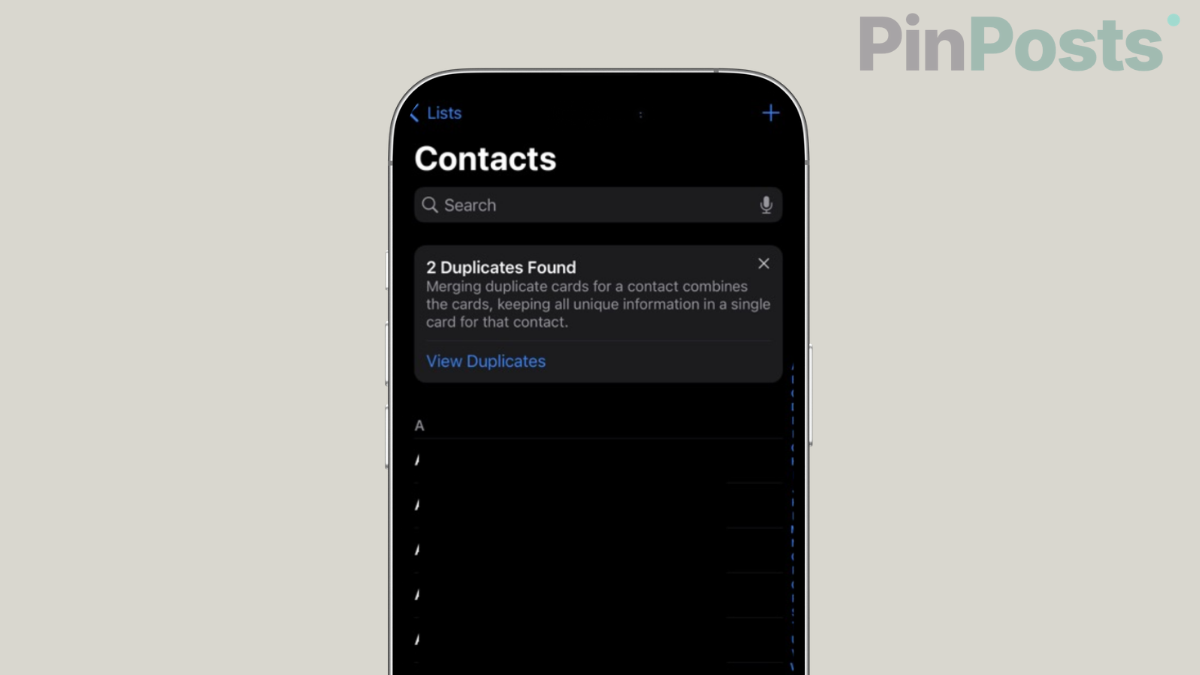
- At the top of the Phone app, you will see the “Duplicate Found” interface.
- It also automatically shows the number of duplicate contact cards you have on your phone. Tap View Duplicates.
- Select the duplicate contact that you wish to merge and review the contact information.
- Click on Merge at the bottom. Or you can click on Merge All if you have multiple duplicates of multiple contacts.
- If you want to merge most of the contacts altogether except some, you can simply swipe left on the contact and select Do Not Merge.
Here is a video clarifying all the steps to remove duplicate contacts in iOS 26 running on your iPhone.
The previous versions of iOS never allowed users to merge duplicate contacts which eventually lead them to try and copy-paste information in between contacts till iOS 16.
Most of the users even tried to use third-party apps to get rid of duplicate contacts. However, fortunately, everything is getting super smooth and hassle-free with iOS 26 now.
Also Read: How to Fix Water Damaged iPhone at Home
I believe this guide has already mentioned the perfect steps you can follow to remove duplicate contacts on iPhone. So, you can now share this post with someone who really need it. Do not forget to join our group or community of 50k+ members where we discuss daily guides like this.