Another day, another iPhone useful guide for those who are looking to calibrate iPhone battery and fix that annoying percentage jumping around or sudden shutdowns.
Is your iPhone showing 30% and then suddenly dying? Or maybe the battery drains from 100% to 20% in just a couple of hours? If that is the case, your iPhone battery needs calibration and I know how frustrating that gets every single day.
Calibrating your iPhone battery basically resets how your iPhone reads its own battery level. Over time, especially after iOS updates, your iPhone can lose track of how much charge is actually left inside. When you calibrate iPhone battery, it fixes that reading so the percentage you see is actually accurate.
The good news is you do not need any third party app or Apple Store visit to do this.
Step By Step Guide To Calibrate iPhone Battery
All you need is some patience and your iPhone charger. Before that Follow these steps carefully
- Use your iPhone normally until it shuts down completely on its own. Do not plug it in when it hits 10% or 20%. Let it die.
- Once it shuts down, leave it off for 2 to 3 hours. Now plug your iPhone into the charger and let it charge all the way to 100%. Do not unplug it in between.
- Once it reaches 100%, keep it on the charger for 1 more hour.
- Go to Settings > General > Shut Down and turn your iPhone off completely.
- Turn it back on by pressing the Side button.
- Repeat this full drain and charge cycle one more time for best results.
After two full cycles, your iPhone battery percentage should be much more accurate and the drain will be more predictable than before.
Most iPhone users skip the second cycle and wonder why calibrating iPhone battery did not work. The second cycle is what actually locks in the calibration so do not skip it.
Here are some more frequently asked questions which may clear you related to battery concern on your iPhone.
How do I recalibrate my battery?
Drain your iPhone battery completely until it shuts off on its own. Leave it for a few hours, then charge it fully to 100% without unplugging. Restart and repeat the cycle once more. That is the complete process to recalibrate your iPhone battery.
Is 76% a good battery life?
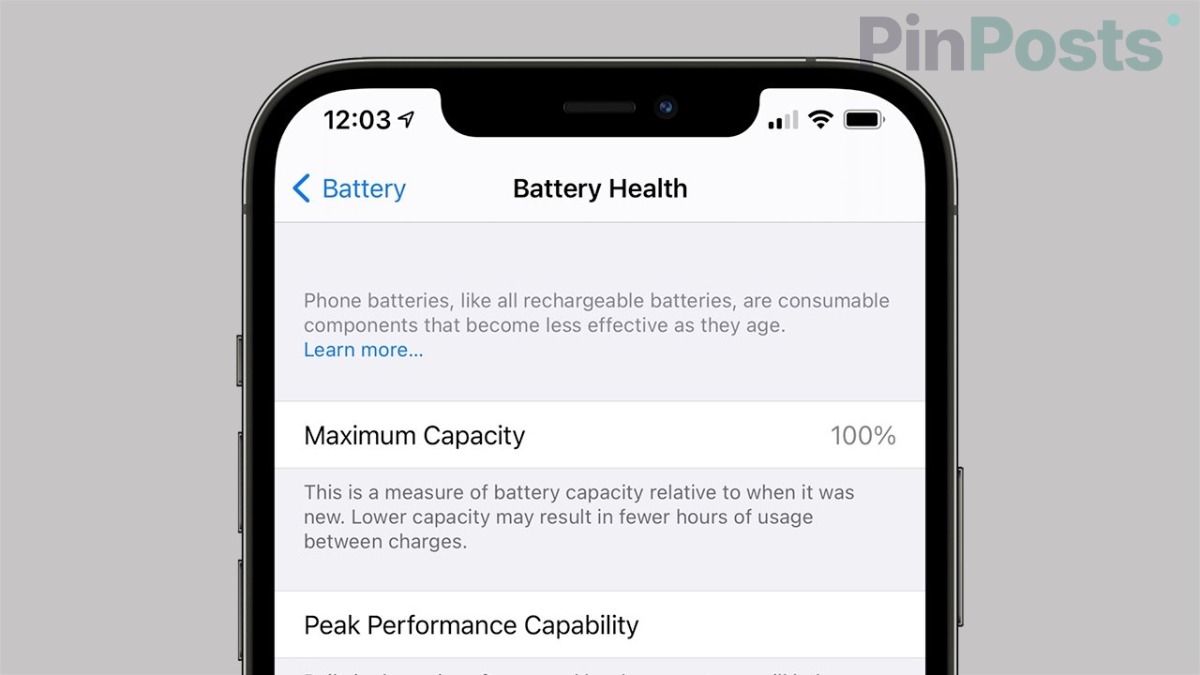
No, 76% is not good. Apple considers anything below 80% as degraded battery health. At 76% your iPhone will drain faster and may shut down unexpectedly. Getting the battery replaced at this point is a better option than dealing with the frustration every day.
Can iPhone battery health be reset?
No, you cannot reset battery health back to 100% on your own. The number reflects the actual physical condition of your battery. Calibration makes the percentage reading more accurate but it does not change the health number. Only a battery replacement gets you back to 100%.
Is 82% battery health bad on iPhone?
82% is not bad. Apple says anything above 80% is still acceptable for normal use. At 82% you may notice slightly shorter battery life but nothing serious. Just keep an eye on it and replace when it drops below 80%.
Is it better to have 80% or 100% iPhone?
For daily charging habits, keeping your iPhone between 20% and 80% is actually better for long term battery health than always charging to 100%. Turn on Optimized Battery Charging from Settings > Battery > Battery Health & Charging and your iPhone will handle this automatically.
Also Read: How to Fix iOS 26 Battery Drain
I believe this guide has already covered everything you need to calibrate iPhone battery and fix the percentage reading. Share this with someone who is dealing with the same issue. Do not forget to join my community of 50k+ members where we discuss daily iPhone guides like this.