Here is everything you need to Fix Airdrop not working iOS 26 running on your iPhone. I am sure this gonna help & fix the issue you are actually looking for.
Another day, another iOS 26 guide for our users who actually updated recently their device to a newest version and suddenly they feel airdrop is not working for them. You here because Airdrop now giving you trouble with this update.
Files are not sending, friend or other person phone is not showing or even a pairing code appearing suddenly. Don’t worry, this guide has the complete guidance to Fix Airdrop not working iOS 26.
Airdrop asking for a Pairing Code
First of all, we need to clear out why Aidrop is asking for a pairing code. So basically Apple added a new step to AirDrop in iOS 26.2 called AirDrop Pairing Codes.
If you want to send a file to someone who is not in your iPhone known contacts, iOS 26 now as for a pairing code. You need to enter the code which appears on the receiver device.
Since people were spamming and due to more security measures, especially when strangers are nearby Apple added a pairing feature which remember the paired devices for 30 days. So they don’t have to reconnect every other day.
So, if you are seeing a pairing code pop-up – do not panic. Just pair both devices & you are good to go.
If one of the device is not visible when using Airdrop feature you may need to check & update some settings. They are likely to fix airdrop issue on your devices.
Check Your iPhone AirDrop Settings
At the very first, you need to make sure you have enabled the Airdrop feature for everyone on your devices. This helps iOS devices understand if you are trying to connect with an unknown contact. Or maybe we can call it “stranger” like explained previously.
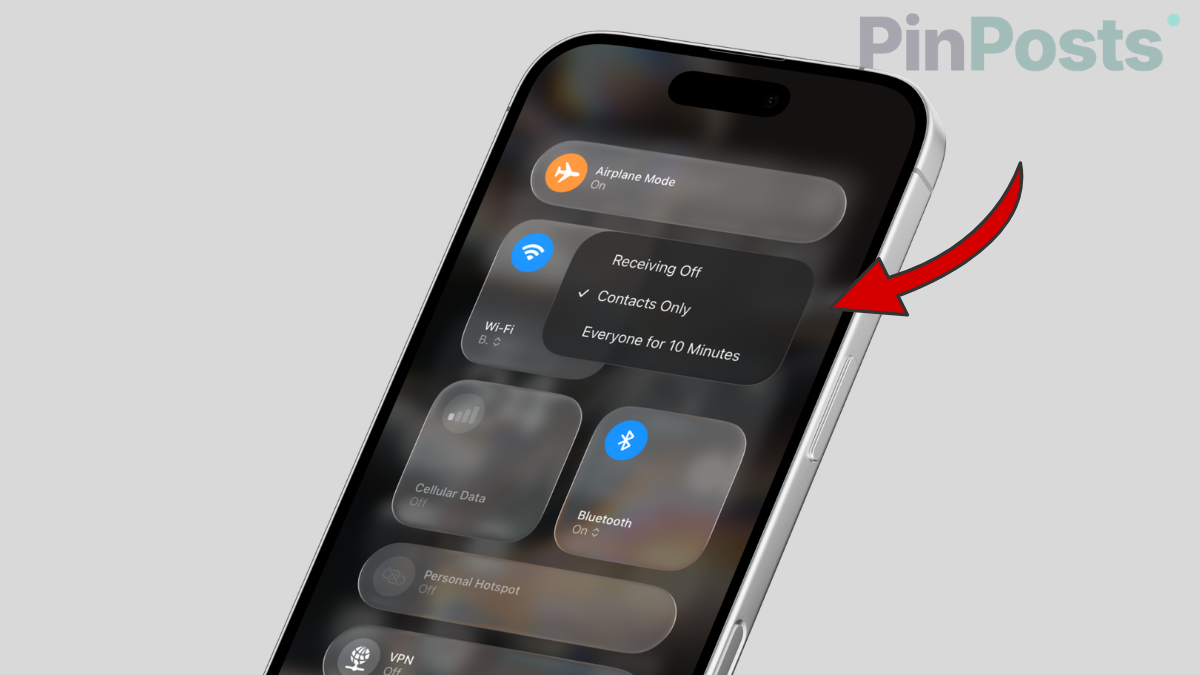
In order to set iPhone airdrop visibility you need to follow these easy steps to connect.
- On your iPhone, go to Settings
- Go to General > Airdrop
- Check if it’s set to “Everyone for 10 minutes” or “Contacts Only
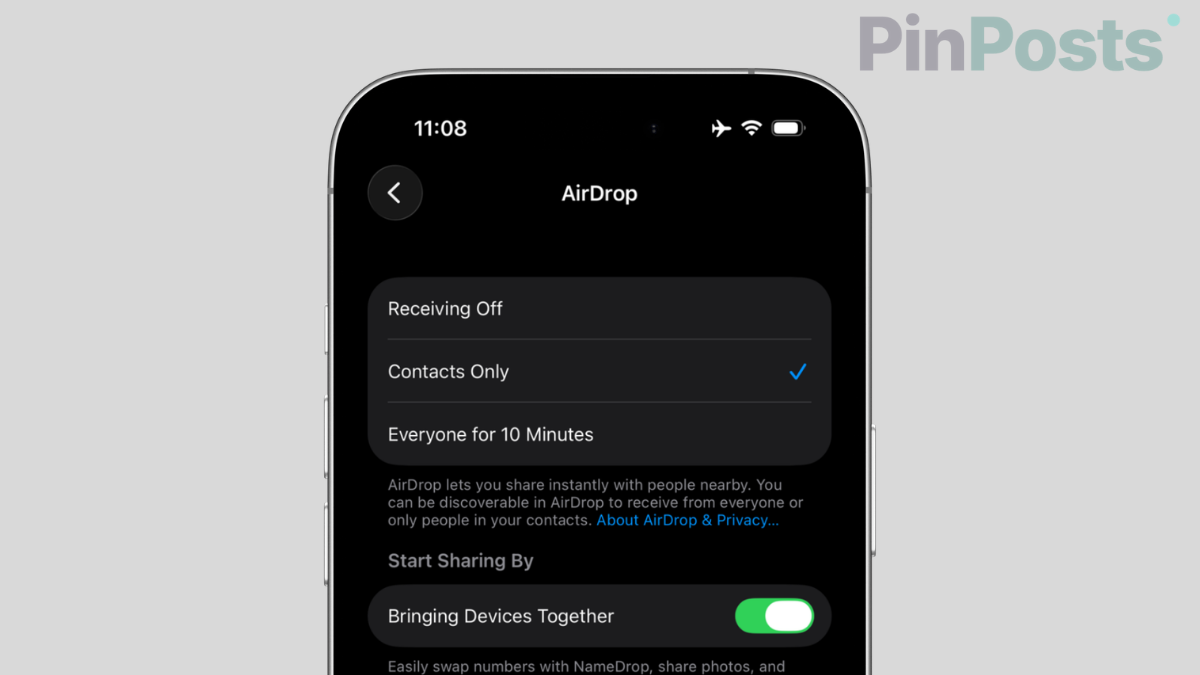
That’s it. You have changed your iPhone airdrop visibility which needs to be set properly instead of “Receiving Off” is set.
Check & Disable VPN Temporarily
I know this looks crazy, but to be honest I found this a cause randomly when i was trying to send files to my friend. In that case i found that VPN routes traffic somewhere else. Usually airdrop relies on founding both devices using WIFI & Bluetooth networks.
So if you have VPN connection enabled anyhow, you need to disable that one so you can make your device visible to contacts or everyone.
Turn off DND or Focus Mode on your iPhone
On the receiver device, you guys need to make sure that there is no do not disturb or focus mode is enabled. These type of modes can hide phone from nearby airdrop searches on purpose.
Just swipe down the control center from the right corner of your device. Check that no Focus mode including sleep, work or do not disturb is currently enabled.
Sending Works but Receiving Doesn’t?
If you are on 26.2 maybe you can send a file from iPhone X to iPhone Y but not back the other way, right? I know why this is happening to you.
One of the main reason is the device name. You just need to rename it without using any special characters probably just use the plain name. In some cases, this has resolved the issue.
Also Read: How to Fix Hotspot Keep Turning Off on iPhone
Fix Airdrop not working iOS 26!
If none of the solutions is working for you, maybe your device is encountering a serious bug. In such cases i highly recommend you to do a hard reset on your device. You can simply do it following this video.
I hope you guys will love this tutorial & i believe your issues has been fixed after reading this all here. Let me know in the comments which method really resolved airdrop issue in your case. Share this with your friends because sharing is caring.
You can also join our Facebook Group for real discussions or iPhone buy or sell. Signing out, Peace.