Another day, another iPhone solution for people have recently updated or upgraded directly to iOS 26.6.2 & now your iPhone hotspot keeps turning off? This guide’s for you.
I know you’re frustrated like me with the release of iOS 26.6.1 because i know your iPhone hotspot keeps disconnecting or maybe not turning on after this update. If you are here, i am going to fix this issue for you with different methods i tried on my device. I’m sure it gonna fix your issue as well but i can’t say which one is the solution that gonna basically works for you. Try each method until you find the one that works.
How iPhone HotSpot Actually Works
Before you deep dive into fixing the issue you must know the basic. If your connected device is idle for about 90 seconds, your iPhone will automatically cut the hotspot connection.
It’s not a glitch, Apple designed it this way to prevent battery drain when a device is connected but not in use. As soon as you open something that needs data on the connected device, the hotspot will reconnect quickly.
If it doesn’t reconnect smoothly, the fixes below should help.
Try Solution 1: Turn On Maximize Compatibility
Apple added Maximize Compatibility to iOS and iPadOS devices for a reason. Turning on Maximize Compatibility will broadcast 2.4GHz signals which reaches faster and connect better with android, window laptops or even older iPhone. So, I suggest you to turn this setting on. Here’s how you can do it.
- Open your iPhone’s Settings app
- Go to Personal Hotspot under Cellular
- Check if Maximize Compatibility is off
- Turn it on
If your hotspot keeps dropping you can try switching this setting to the opposite of whatever it’s currently set to, then reconnect again.
Solution 2: Charge Past 20% or Turn Off Low Power Mode
When your iPhone battery is low or below 20%, it usually turns on Low Power Mode automatically. This lowers background app refresh and affects Personal Hotspot functionality.
So, keep your device connected to power if the battery is 20% or lower. If no power is available, turn off Low Power Mode.
Try Solution 3: Disconnect Extra Devices
I discovered another reason when I was in university class and my hotspot wasn’t connecting to my Android phone.
I found that all devices connected to the iPhone hotspot share the same signal and data connection. Several devices connected at once can overload the connection, causing random drops for everyone. You can only connect 5-10 devices at a time and further devices can’t be connected.
So you must disconnect any unused devices and see if the connection holds up with fewer devices.
What If the Hotspot Option Is Missing or Greyed Out?
This case is different; you might not be on iOS 26 yet. In some cases, Personal Hotspot is gray and needs a carrier settings update, or you may need to contact your carrier for help. If you believe all settings are fine on your phone then you need to look into these options.
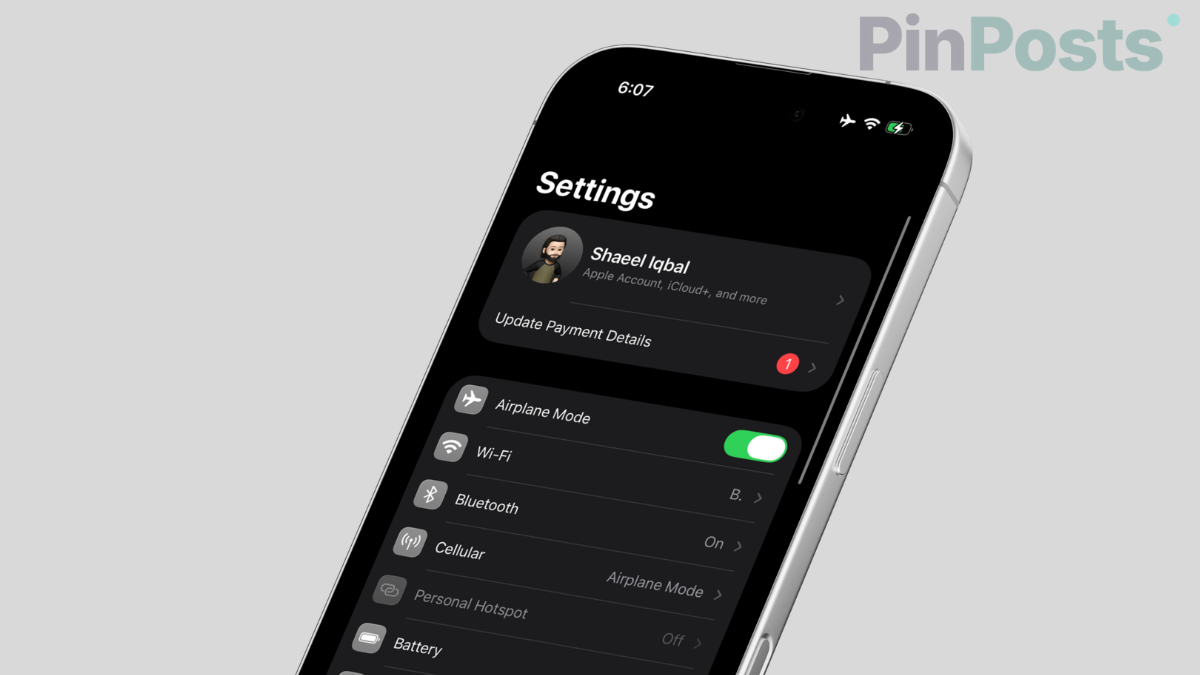
- At very first you need to check & Upgrade to the newest iOS version.
- Check and remove any third-party VPN profiles from Settings > General > VPN & Device Management.
- Go to Settings > General > Transfer or Reset iPhone > Reset then Reset Network Settings.
Apple keeps its own current troubleshooting steps on its official Personal Hotspot support page if you cant find something helpful from all of the above mentioned solutions.
One last thing you can try before leaving this page is to connect other device to your iPhone using a cable for better hotspot. This method is most reliable and won’t disconnect, even if you lock both devices.
If you find a solution helpful, leave a comment below and mention any other possible solutions you’ve found. I would love to add to this post later to make it better for community. If you are interested in more queries related to iPhone you are welcome to join my facebook group as community.