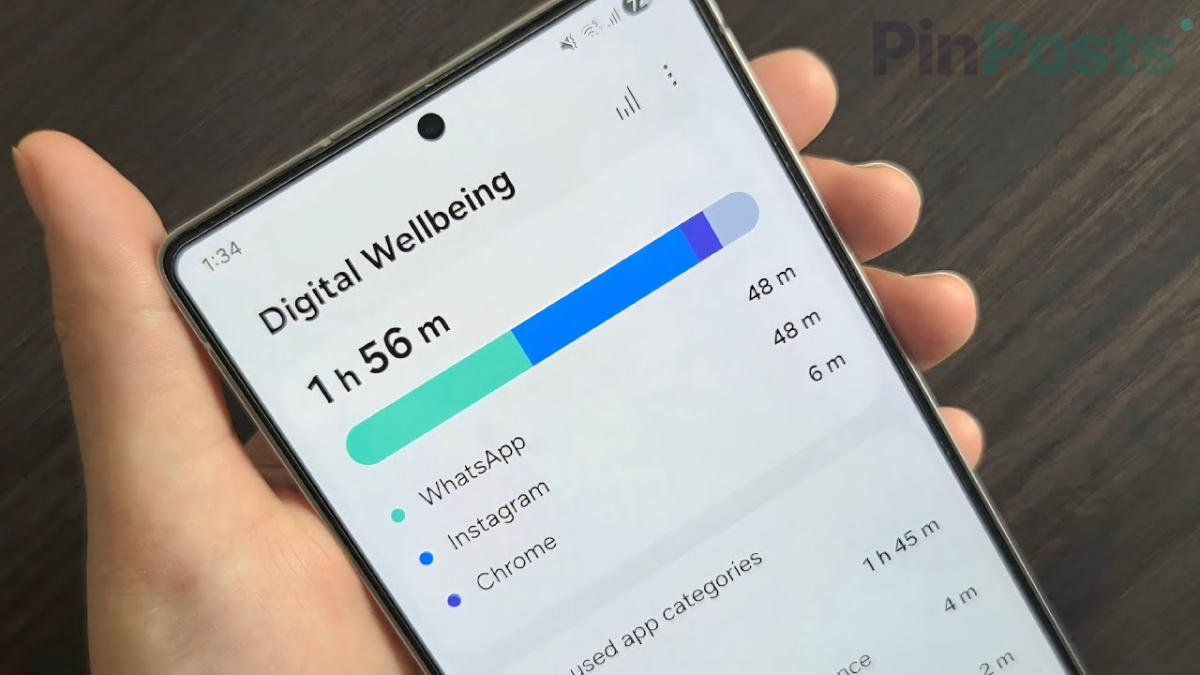
Do the numbers in Digital Wellbeing look wrong? Maybe it says you used your phone way more, or way less, than you think you did. You’re not imagining it — this is a real, common problem. Here’s why it happens and how to fix each version of it.
Why Digital Wellbeing and Battery Usage Show Different Numbers
Digital Wellbeing and your phone’s Battery usage screen track time in two different ways.
- Digital Wellbeing starts counting over at midnight, every day.
- Battery usage starts counting over when your phone hits 100% charge.
So if you charge your phone overnight, these two screens are measuring different time windows. That’s why they don’t match. Neither number is broken — they’re just answering a different question.
Why Samsung Phones Show More Screen Time After an Update
If you have a Samsung phone, you may have noticed your screen time jump up after a software update. Newer Samsung software counts screen time per calendar day instead of since your last charge. If you go to bed late and use your phone past midnight, that time can get counted twice — once for the night before, once for the new day. This makes the total look bigger than it really is.
Fix: Digital Wellbeing Screen Time Looks Stuck or Wrong
Sometimes Digital Wellbeing just doesn’t update in real time. If the number looks too low or frozen:
- Close the Digital Wellbeing app fully.
- Open it again. This forces it to refresh.
- If it still looks wrong, restart your phone.
Users on Samsung forums confirm this simple refresh usually brings the number back in line right away.
Fix: App Timer Won’t Reset at Midnight
If your app timers or screen time total keep carrying over from yesterday instead of resetting, try these steps in order. Stop as soon as one works:
- Restart your phone. This fixes it most of the time.
- Clear the app’s cache. Go to Settings > Apps > Digital Wellbeing > Storage > Clear Cache. Then restart your phone.
- Clear the app’s data. Same menu, but tap Clear Data instead. Note: this removes any app timers you already set, so you’ll need to set them again.
- Uninstall updates. In the Digital Wellbeing app info screen, tap Uninstall Updates. This resets the app back to its original version.
Fix: One App Shows Way Less Time Than You Actually Used
Some apps, especially video and streaming apps, are known to undercount badly — users have reported an hour of real use showing as just a minute or two. This is a tracking gap in how Digital Wellbeing watches that specific app, not something wrong with your phone. There’s no user-side fix for this one yet — just know the number for that app may not be accurate, even though everything else on your phone is tracking normally.