Last updated: August 4, 2026
Typing a normal sentence, and right after a word like “don’t” or “I’m,” the next word comes out in the wrong case — lowercase when it should be capital, or the other way around? This isn’t just you. It’s part of a much bigger keyboard bug that’s been widely reported since iOS 26, not something wrong with your specific iPhone.
Why This Happens
iOS 26 changed how the keyboard handles autocorrect and capitalization together, and the two systems don’t always agree with each other anymore. When you type a word with an apostrophe, the keyboard sometimes gets confused about whether a new sentence started or not, so it picks the wrong case for the next word. It’s a real bug in iOS itself, and it’s been one of the most complained-about issues since the update came out.
Turn Off Auto-Correction
This is the fix that’s worked best for the most people, according to Apple’s own support forums. It doesn’t fix the underlying bug, but it stops the keyboard from making these wrong guesses in the first place:
- Open Settings.
- Tap General, then Keyboard.
- Turn off Auto-Correction.
You’ll need to catch your own typos afterward, but the random case-switching stops.
Reset Your Keyboard Dictionary
If you’d rather keep autocorrect on, try this first:
- Open Settings → General → Transfer or Reset iPhone.
- Tap Reset, then Reset Keyboard Dictionary.
This clears out whatever your keyboard has “learned,” which is often where these bad habits get stuck.
Turn Off Auto-Capitalization Specifically
If it’s really just the capital letters going wrong, and everything else about autocorrect is fine, you can turn off just that one part: Settings → General → Keyboard → Capitalization, and switch it off. This leaves autocorrect working normally but stops it from guessing capital letters at all.
Stop It From Happening to One Specific Word
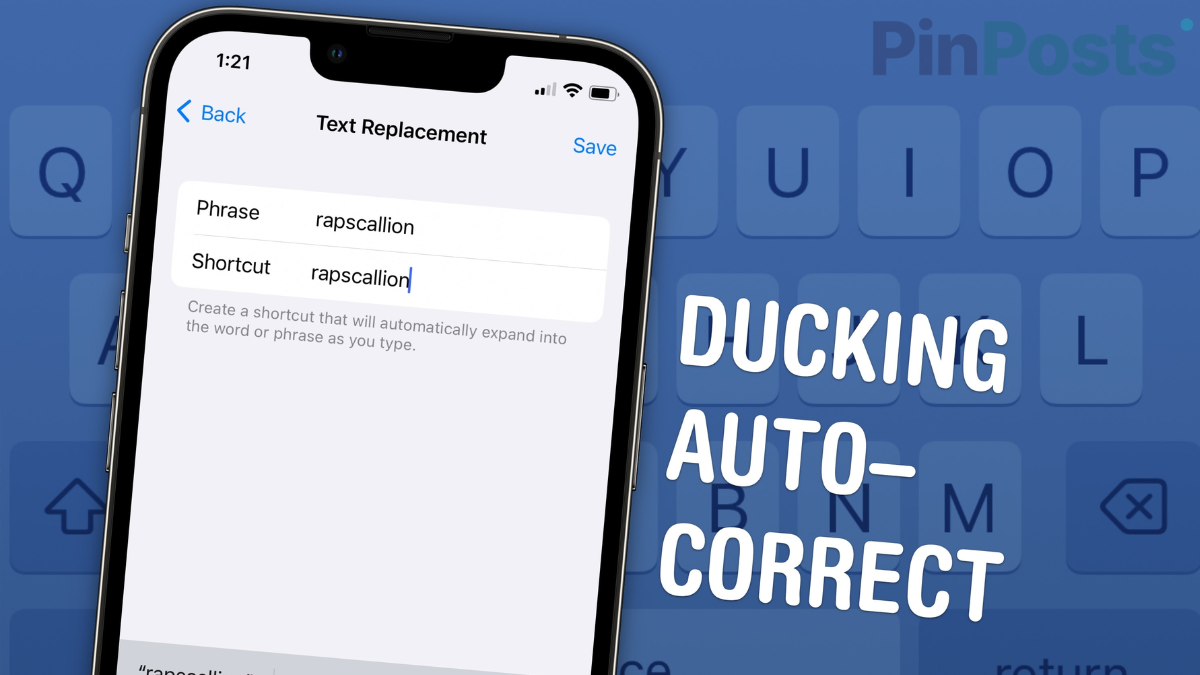
If it’s really just one word or phrase that keeps breaking, you can force the keyboard to always get it right: go to Settings → General → Keyboard → Text Replacement, add that word as both the phrase and the shortcut, exactly how you want it typed. The keyboard will stop trying to “correct” it after that.
The Short Version
- This is a real iOS 26 bug affecting lots of people, not your phone specifically.
- Turning off Auto-Correction is the most reliable fix.
- Resetting your Keyboard Dictionary can help if you want to keep autocorrect on.
- Turning off just Capitalization fixes it while keeping autocorrect’s spelling help.
- One word keeps breaking? Add it under Text Replacement so it always types right.
Which fix worked for you? Let us know in the comments, and check out more iPhone guides for other iOS 26 fixes.