Last updated: August 4, 2026
Did some of your app icons look different all of a sudden? Don’t worry — your phone is not broken. Most of the time, this is just Google changing how its own apps look. Here’s what’s really going on, and how to fix the parts that actually are bugs.
Google Changed the Look of Its Own Apps
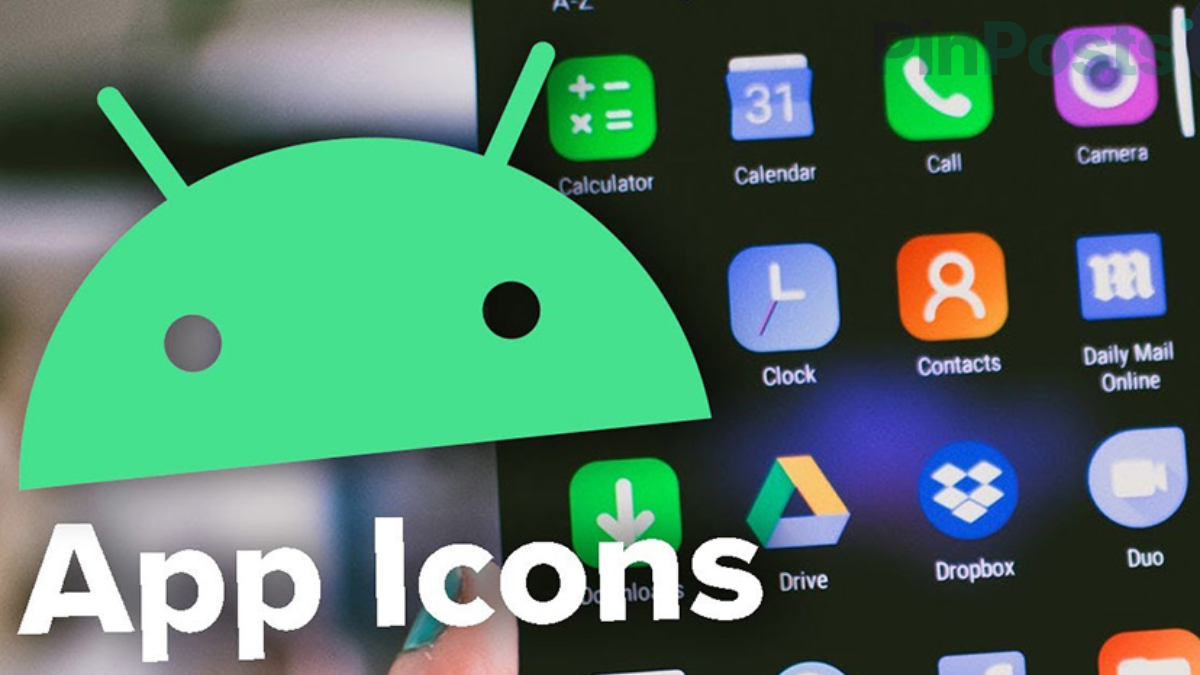
Over the last couple of months, Google has been giving some of its apps new icons. Gmail, Calendar, Drive, Photos, Maps, and Meet all got a new look, with soft blended colors instead of flat, solid ones. This is on purpose — Google wants all its apps to look like one family. Nothing inside these apps changed. Only the icon picture did.
Play Store Says “Updated,” But My Icon Still Looks Old
This is the part that trips people up, but there’s a simple reason for it. Google isn’t sending the new icon to every phone at the same time. So you can update an app today and still see its old icon for a while after that.
Here’s what to try, in order:
- Restart your phone. This fixes it for most people, once the new icon has actually reached your device.
- Still old? Delete the app and install it again. This makes your phone grab a brand new icon instead of the one it saved earlier.
All My Icons Turned Grey or the Same Color
If it’s not just Google’s apps — if every icon on your whole home screen turned grey or one color — that’s a different thing. It’s a setting called Themed Icons. It changes your icon colors to match your wallpaper. Some updates turn this on by themselves, without asking you first.
To turn it off: press and hold an empty space on your home screen, tap Wallpaper & style, find Themed icons, and turn it off.
One Icon Looks Broken or Blank
If just one single app has a broken or blank icon — not a new design, just wrong or missing — that app’s icon file probably got messed up during the update. The fix that works best: delete that one app and install it again. This makes your phone build its icon from scratch instead of trying to fix the broken one.
The Short Version
- Gmail, Calendar, Drive, Photos, Maps, or Meet look different? That’s Google’s new design, not a bug.
- Icon still looks old after you updated? Restart your phone, or delete and reinstall the app.
- Every icon on your phone turned grey? Turn off Themed Icons in your Wallpaper & style settings.
- Just one icon looks broken? Delete that app and install it again.
Which one happened to you? Tell us in the comments, and check out more Android guides for other fixes after an update.