Is AirDrop giving you trouble on iOS 26.2 — files that won’t send, a phone that suddenly won’t show up, or a strange code appearing out of nowhere? Most of this has a clear cause. Here’s a plain breakdown of what changed, why file sharing between iPhones might be acting up, and exactly how to get it working again.
Why AirDrop Now Shows a Code When Sharing With a Stranger
Apple added a new step to AirDrop in iOS 26.2 called AirDrop Codes. If you send a file to someone who isn’t saved in your contacts, their phone displays a short code. They tell it to you out loud, you type it into your own phone, and only then does the transfer go through. Apple built this to stop random people from blasting unwanted files at strangers nearby — sometimes called AirDrop spam. Once you and that person verify each other one time, your devices skip the code and connect normally for the next 30 days. If you’re seeing a code for the first time, your AirDrop isn’t broken — it’s working exactly as designed.
Fix: Confirm Your AirDrop Visibility Setting
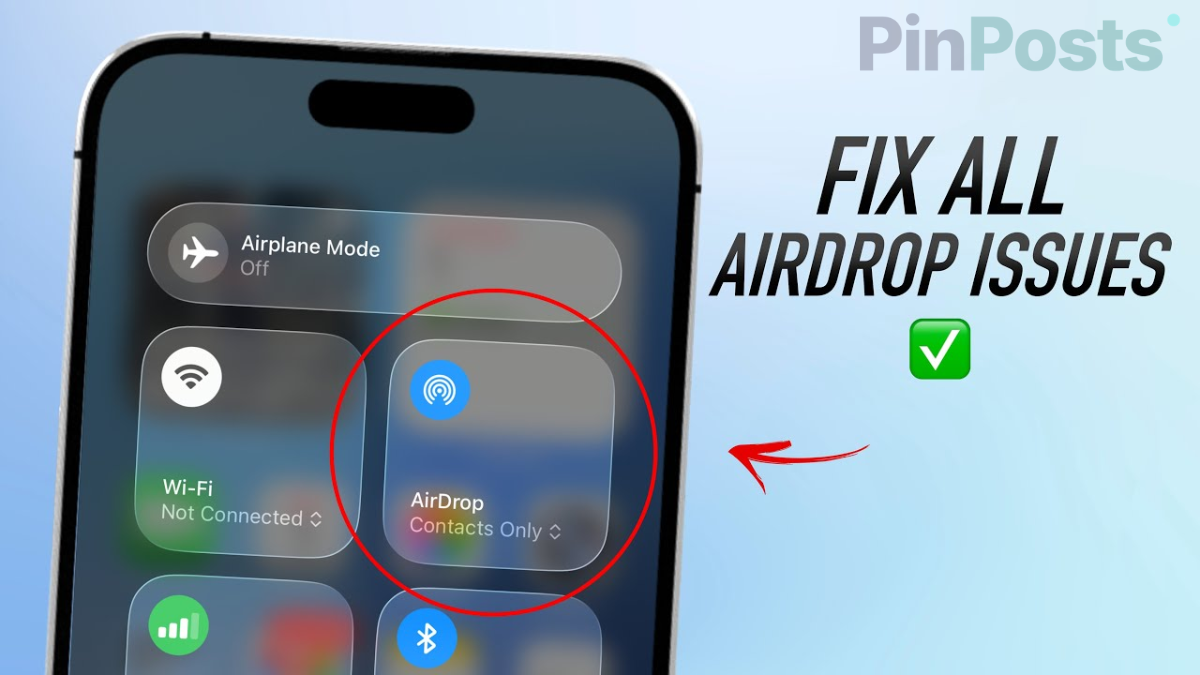
Open Settings, tap General, then tap AirDrop. Check that it’s set to “Everyone for 10 Minutes” or “Contacts Only” instead of “Receiving Off.” A handful of phones quietly flipped this setting to off during the update, which stops your phone from showing up to anyone at all. Apple keeps its current setup instructions on its official AirDrop help page if you want to double-check yours matches.
Fix: Disable Your VPN Temporarily
AirDrop relies on your phone finding other devices over your local Wi-Fi and Bluetooth signal. A running VPN routes your traffic somewhere else first, so your phone can no longer “see” nearby devices the normal way. Turn your VPN off and try AirDrop again — if it works, look inside your VPN app’s settings for a toggle that allows local network traffic, so you don’t have to keep switching it off each time.
Fix: Turn Off Do Not Disturb or Any Focus Mode
Focus modes hide your phone from nearby AirDrop searches on purpose, as part of cutting down interruptions. Swipe open Control Center and check that no Focus mode — including Do Not Disturb, Sleep, or Work — is currently switched on before you try sending or receiving again.
Fix: Sending Works But Receiving Doesn’t (or the Reverse)
Some people on iOS 26.2 can send a file from Phone A to Phone B, but not back the other way. If that’s happening to you, work through these in order and stop once it starts working:
- Turn both phones off completely and back on again — not just lock and unlock.
- Go to Settings, then General, then Transfer or Reset iPhone, then Reset, then Reset All Settings. Your photos, apps, and files stay untouched — only your saved settings (like Wi-Fi passwords) get cleared.
- Rename your device under Settings, General, About, Name. A short, simple name without special characters has fixed this for some users.
Nothing Worked? Here’s What to Do Next
If you’ve tried everything above, you’re likely running into a genuine software bug in this specific iOS build rather than a mistake in your settings. Open the Feedback app on your iPhone to report it directly to Apple, or book a Genius Bar visit if it’s affecting something urgent. In the meantime, apps like LocalSend can move files between your devices over Wi-Fi without touching AirDrop at all, so you’re not stuck waiting on a fix to get your files where they need to go.