Your iPhone’s hotspot cutting out on its own, dropping other devices, or refusing to even turn on? There are a few different things going on here, and each one has its own real fix. Here’s what’s actually causing it and how to stop it.
Why Your Hotspot Shuts Off After a Short Time
If nothing has downloaded or loaded on the connected device for about 90 seconds, your iPhone will cut the hotspot connection on its own. This isn’t a glitch — Apple built it in on purpose to stop your battery from draining while a device sits connected but idle. The moment you open something on the connected device that needs data, the hotspot should reconnect right away. If it doesn’t reconnect smoothly, the fixes below should help.
Fix: Try Switching “Maximize Compatibility” the Other Way
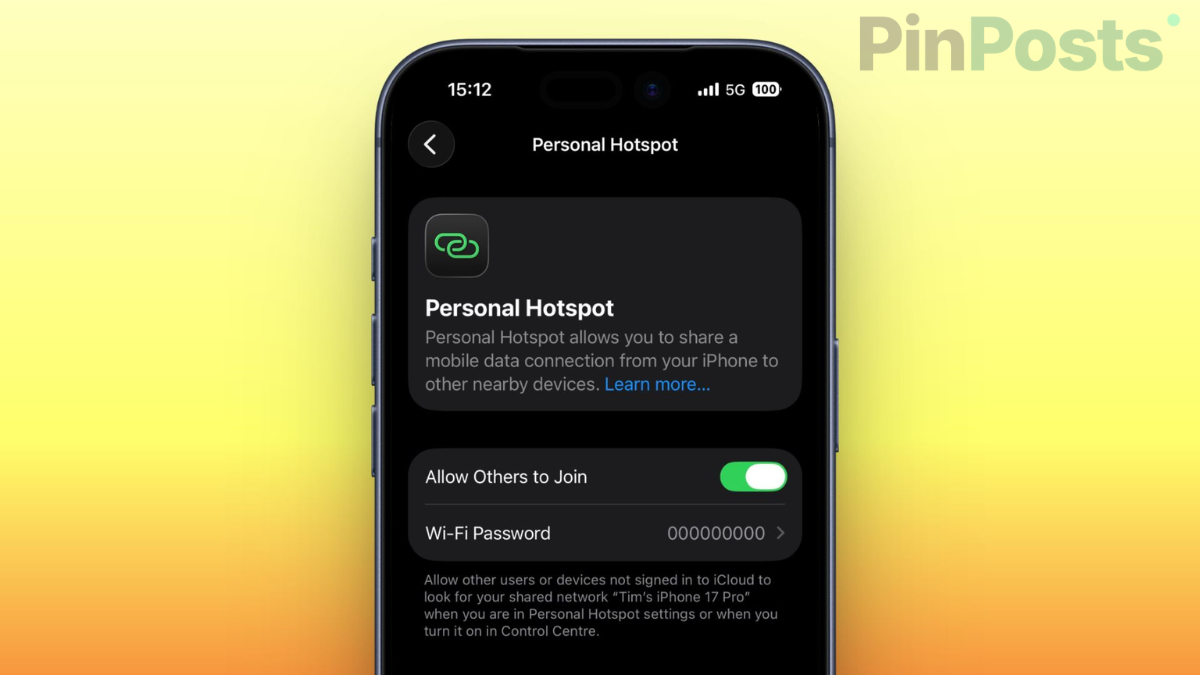
Inside Settings, then Personal Hotspot, you’ll find a toggle called Maximize Compatibility. This one setting causes two opposite problems depending on which way it’s set:
- Turned on, your hotspot broadcasts on the older 2.4GHz signal. This reaches farther and connects to older laptops and gadgets, but drops more easily.
- Turned off, your hotspot uses the faster, newer 5GHz signal, which tends to stay connected more reliably on modern devices, but has a shorter range.
If your hotspot keeps dropping, try switching this setting to the opposite of whatever it’s currently set to, then reconnect.
Fix: Charge Past 20% and Turn Off Low Power Mode
When your iPhone’s battery drops low enough to trigger Low Power Mode, background features — including your hotspot — get scaled back automatically to save power. Keep your phone above 20% battery, or plug it in, and check Settings, then Battery, to make sure Low Power Mode isn’t switched on while you’re using the hotspot.
Fix: Disconnect Extra Devices
Every device connected to your hotspot shares the same signal and data connection. Having several phones, laptops, or tablets connected at once can overload it, causing random drops for everyone. Disconnect anything you’re not actively using and see if the connection holds steady with fewer devices attached.
Fix: The Hotspot Option Is Missing or Greyed Out Completely
This is a different, more serious issue than random disconnects, and it’s shown up specifically after updating to iOS 26. If Personal Hotspot appears greyed out and won’t turn on at all, it’s almost always a carrier account setting, not something wrong with your phone. Try these in order:
- Update to the newest available iOS version — several users found this alone fixed it.
- Contact your carrier and ask them to confirm hotspot is active on your specific plan and re-enable it if needed.
- Remove any third-party VPN profile from Settings, then General, then VPN & Device Management.
- Go to Settings, then General, then Transfer or Reset iPhone, then Reset, then Reset Network Settings.
Apple keeps its own current troubleshooting steps on its official Personal Hotspot support page if you want to cross-check anything here against the source.
One More Tip
If your hotspot still drops out over Wi-Fi no matter what you try, connecting the other device to your iPhone with a USB cable is the most stable option available — it skips wireless interference entirely.