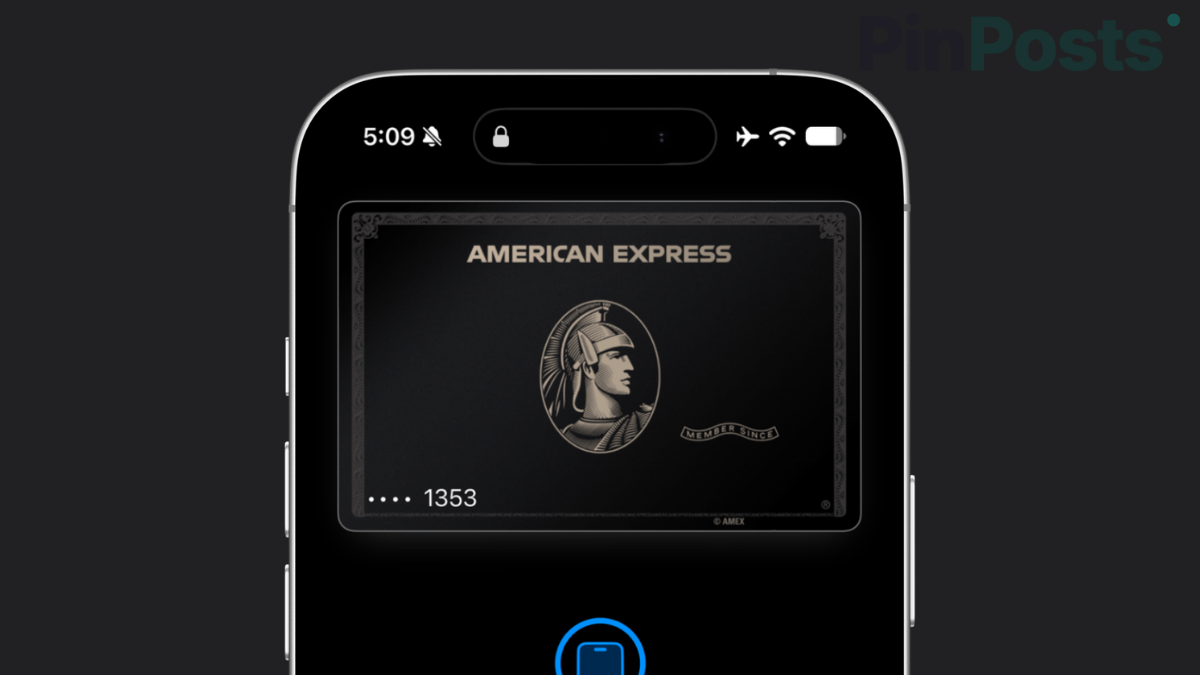
Your bank card looks the same as everyone else’s inside Apple Wallet and that is pretty plain, boring, whatever design your bank picked for you. AirCard changes that, and you don’t need to jailbreak your phone to do it.
I tried it myself on my iPhone 17 running iOS 27.0, connected to a MacBook Pro M2 (2022), and it worked on the first attempt and to be honest this required no jailbreak, no reboot, no force-closing anything. Here’s everything I found out about it & exactly how I did it.
What Is AirCard
AirCard is a free and open source tool that changes how a card looks inside Apple Wallet. It swaps the card’s cached image for one you choose, so a bank card, transit card, or loyalty card can look however you want.
It doesn’t need a jailbreak. Instead, it uses a sync trick between your iPhone and a Mac to reach the folder where Wallet stores card images.
The developers call it the “AirTraffic sync exploit” based on sandbox-escape research by a developer known as 0xjohnnydev.
It is not an official Apple feature or Apple hasn’t built this into Wallet, and this works around that rather than through it.
Is AirCard Safe to Use
In my case, nothing else on the phone was affected. It only touches the cached image files Wallet uses to draw your card, not your actual card number, bank details, or payment ability.
That said, because it writes directly into a protected cache and not through an approved Apple feature, always back up your original card art first (more on that below), and only download card designs and app builds from sources you trust.
What You Need Before You Start
- A Mac (Apple Silicon or Intel), running macOS 14 or later
- An iPhone on iOS 18 or later (I used iOS 27.0)
- A USB cable to connect the two
- A PNG image of the card design you want
How to Use AirCard on Mac – Step by Step Guide
- Download AirCard.dmg from its GitHub releases page and drag the app into Applications.
- On first launch, macOS blocks it since it’s from an unidentified developer. Right-click the app > choose Open > then click Open again to allow it.
- Connect your iPhone to your Mac with a USB cable. Keep your phone unlocked.
- On your iPhone, double-click the side button to open Apple Pay, then confirm with Face ID.
- Tap your card once it shows up on screen.
- In AirCard on your Mac, click Scan Cards. It picked up my card right away.
- Click the card mockup in AirCard and drop in your PNG image.
- Click Flash Skins. Boom!
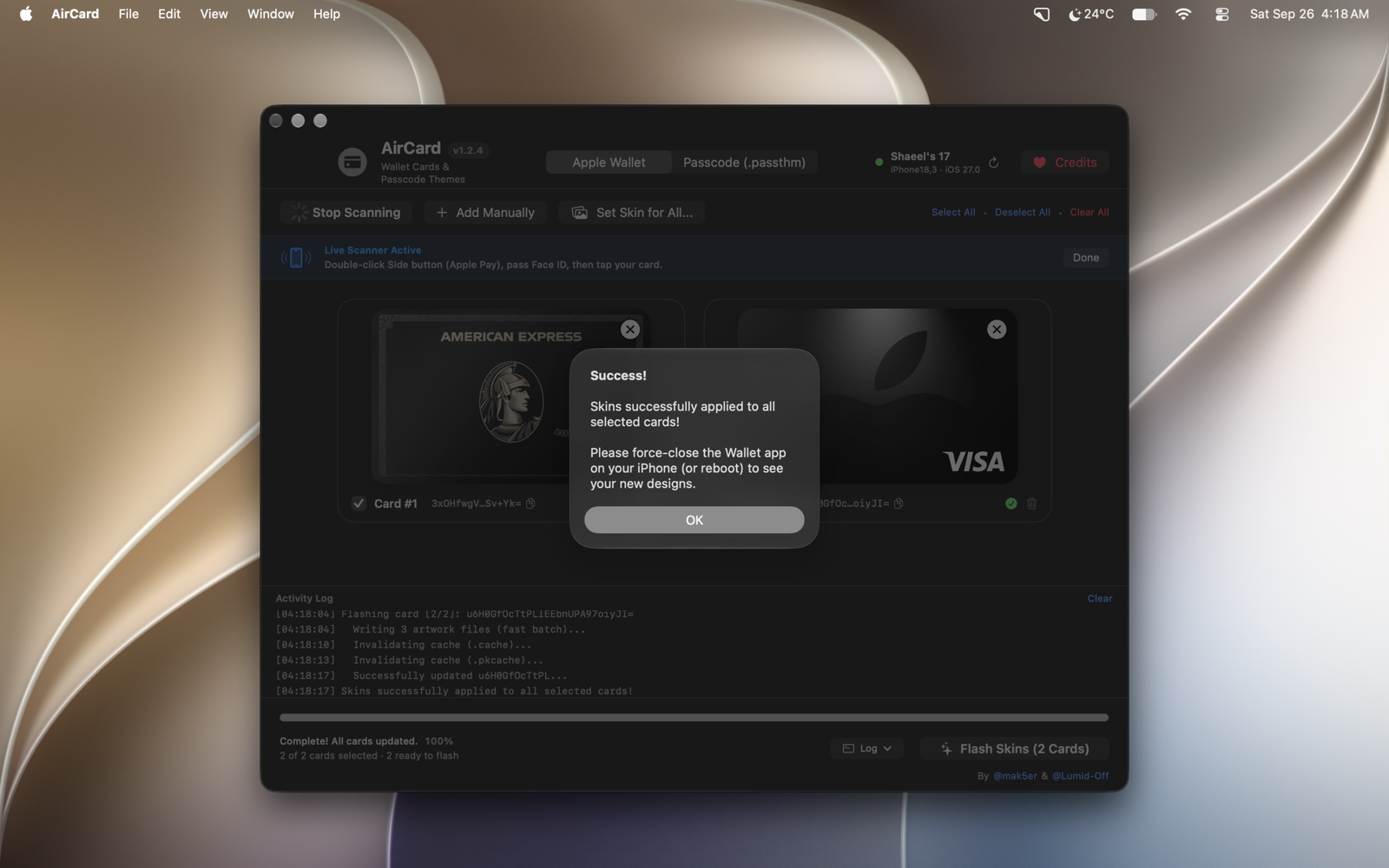
That’s the whole process. In my case, the new design showed up in Wallet immediately and no reboot or force-close needed.
AirCard’s own instructions say to force-close Wallet from the app switcher if your design doesn’t show up right away, so try that first if yours doesn’t appear instantly.
My Results Testing AirCard on iPhone 17 and iOS 27
Every step matched the developer’s instructions exactly. Card detection took a few seconds after tapping the card in Apple Pay, and the new design applied within about 10 seconds of clicking Flash Skins.
I didn’t need to rebuild anything, reboot, or troubleshoot. It worked cleanly on this specific setup (iPhone 17, iOS 27.0, MacBook Pro M2 2022).
AirCard vs AirCard-iOS
There are two ways to do this, depending on whether you have a Mac.
AirCard (Mac app)
- Needs a Mac (Apple Silicon or Intel)
- Works on iOS 18 and later
- Setup is easy. Just download, connect your iPhone by USB and its done
AirCard-iOS (iPhone only, no Mac needed)
- No Mac required
- Needs iOS 27 or later
- Setup is more involved and you can install through a sideloading tool (SideStore, AltStore, TrollStore, or LiveContainer), then pair through Developer Mode
Using AirCard Without a Mac (AirCard-iOS)
If you don’t own a Mac, there’s an iPhone-only version called AirCard-iOS. It needs iOS 27 or later and works entirely on the device, but the setup is more involved:
- You install the app through a sideloading tool like SideStore, AltStore, TrollStore, or LiveContainer, since it isn’t on the App Store.
- You pair it through Settings > Privacy & Security > Developer Mode > Pair with AirCard-iOS.
- It needs a small local VPN running in loopback mode so the app can talk to internal parts of iOS.
Once paired, you don’t need a computer again. I haven’t personally tested this iPhone-only version and my testing above was on the Mac app.
Bonus Feature: Lock Screen Passcode Themes
Both versions of AirCard can also change the numbers on your lock screen passcode keypad, using .passthm theme files. You can build a custom theme from one image, or design each key separately, with a live preview before you apply it.
If you use this feature, turn off Bold Text first (Settings > Display & Brightness), since Bold Text makes iOS draw the numbers as vector text instead of using your custom images.
Where to Get Ready-Made Card Designs
If you don’t want to make your own image just go to cardart.cc has over 1,000 ready-made card designs sized specifically for AirCard (1536×969 PNG), including popular ones for Apple Card and Amex.
Download the PNG and drop it straight into AirCard the same way you would your own image.
How to Back Up and Restore Your Original Card Art
Before flashing a new design, let AirCard back up the original artwork first. If something goes wrong and you skip this, you can permanently lose your card’s real issuer design, with no way to bring it back.
AirCard now requires this backup step before it will flash anything, so you shouldn’t be able to skip it by accident.
Frequently Asked Questions
You might have some questions in your mind and here are most common questions. Dropping these because many of you will be looking for answers to these questions.
Does AirCard affect Apple Pay or my ability to make payments?
No. It only changes the image Wallet displays for the card, not the card’s payment function.
Can I go back to my card’s original design?
Yes, as long as you let AirCard back up the original artwork before flashing a new one. Without that backup, restoring isn’t guaranteed.
Does AirCard work on older iOS versions, like iOS 17?
No. AirCard needs iOS 18 or later. AirCard-iOS (the Mac-free version) needs iOS 27 or later.
Is AirCard on the App Store?
No. The Mac app is downloaded directly from GitHub, and the iPhone-only version is installed through a sideloading tool since it isn’t distributed through the App Store.
Do I need to reboot my phone after flashing a new design?
Not necessarily. In my testing on iPhone 17 with iOS 27.0, the new design appeared instantly. If yours doesn’t show up right away, force-close Wallet from the app switcher.
Final Thoughts
AirCard is one of the easiest “no jailbreak” tweaks I’ve tried on iPhone. If you already have a Mac, the whole process took me under two minutes from download to seeing the new card in Wallet. That’s Crazy HAHA.
If you don’t have a Mac, AirCard-iOS gets you there too, just with a few extra setup steps. Either way, back up your original artwork first, and you’re free to swap your card’s look as often as you want. Signing out, Peace!