
Last updated: July 28, 2026
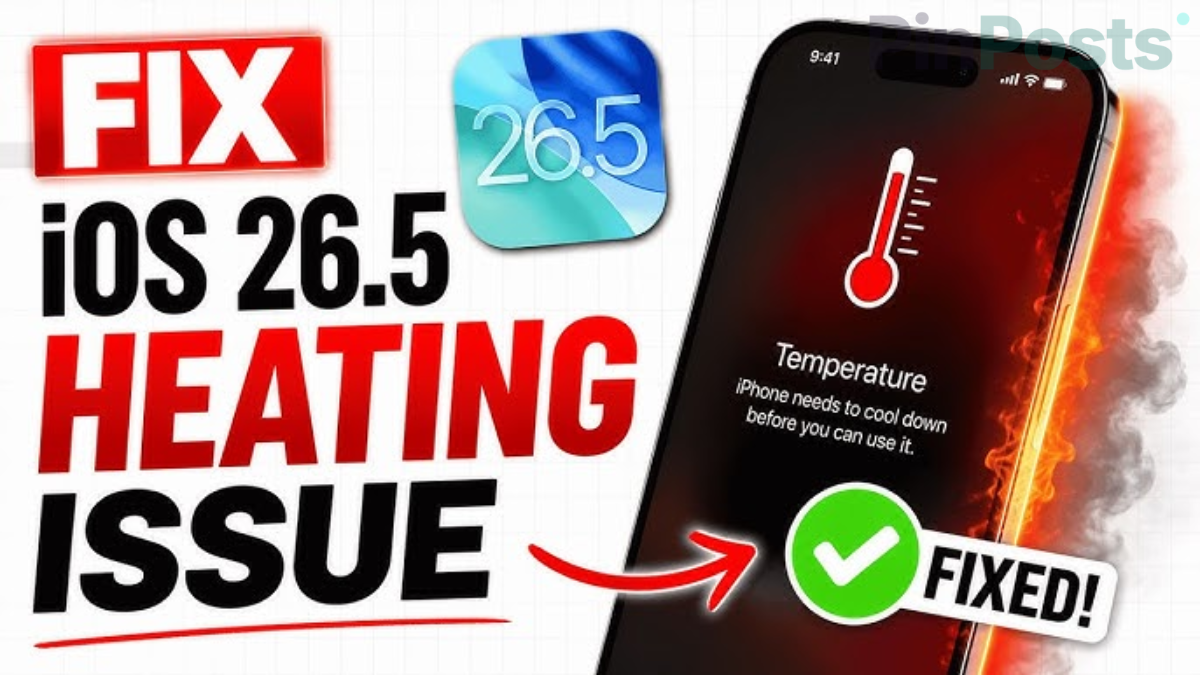
If your iPhone has been running hot and losing battery fast since late June, you’re not imagining it — and it’s probably not your battery degrading. iOS 26.5.2, released June 29, has generated widespread complaints of overheating and rapid battery drain across Apple’s own community forums, MacRumors, and multiple tech outlets. Here’s what’s likely causing it and the settings that actually help.
Why This Is Happening
Apple hasn’t officially named a cause, so treat this as the leading theory rather than a confirmed explanation: after a major update, iOS re-indexes Spotlight search, re-syncs iCloud Photos, and processes Apple Intelligence’s on-device models — all at once, all CPU-intensive. That’s a normal (if unpleasant) few days for most people. The problem is that several default settings keep piling extra drain on top of it, which is why the heat and battery loss doesn’t let up for some users even after that initial window passes.
1. Turn Off Background App Refresh
Apps reloading themselves in the background — even ones you’re not using — is one of the single biggest drains on any iPhone, update or not.
Go to Settings → General → Background App Refresh and switch it to Off, or at minimum Wi-Fi Only.
2. Turn Off Apple Intelligence (Temporarily)
Apple Intelligence features process your photo library and other on-device data, which can pin your processor for an extended stretch right after an update.
Go to Settings → Apple Intelligence & Siri and toggle it off. You can turn it back on once things settle down.
3. Check Your Location Services Settings
Plenty of apps ping your GPS constantly in the background, which quietly drains battery all day, every day — not just after an update.
Go to Settings → Privacy & Security → Location Services and set apps to “While Using” instead of “Always.” Anything with no real reason to know your location, turn off entirely.
4. Turn On Reduce Transparency and Reduce Motion
iOS 26’s glass-style visual effects are rendered live by the GPU for as long as the screen is on, which adds to both heat and drain.
Go to Settings → Accessibility → Display & Text Size → Reduce Transparency, then Accessibility → Motion → Reduce Motion, and turn both on.
Is Stopping at 80% While Charging a Problem?
No — if your iPhone or iPad stops charging at 80% and says it’s cooling down, that’s expected behavior, not a fault. It fast-charges to 80%, then holds there while the battery is warm, which is Apple protecting battery health rather than a bug. Letting it do this is better for long-term battery life than forcing it to 100% every time.
Still Hot After 3 Days?
The initial re-indexing process should wrap up within about 72 hours. To help it finish faster, plug your phone in overnight on Wi-Fi with the screen off.
If it’s still running hot several days later, check Settings → Battery → Battery Health. If capacity has dropped below 80%, the issue is likely your battery itself, not the update.
The short version
- iOS 26.5.2 (released June 29, 2026) has generated widespread, real complaints of overheating and battery drain
- The likely cause is background re-indexing after the update — not officially confirmed by Apple, but the most consistent explanation reported so far
- Turning off Background App Refresh and Apple Intelligence temporarily helps the most
- Tightening Location Services and enabling Reduce Transparency/Motion helps further
- Charging stopping at 80% is normal thermal protection, not a fault
- Still hot after 3 days? Check Battery Health — under 80% capacity means it’s the battery, not the update