Last updated: August 1, 2026
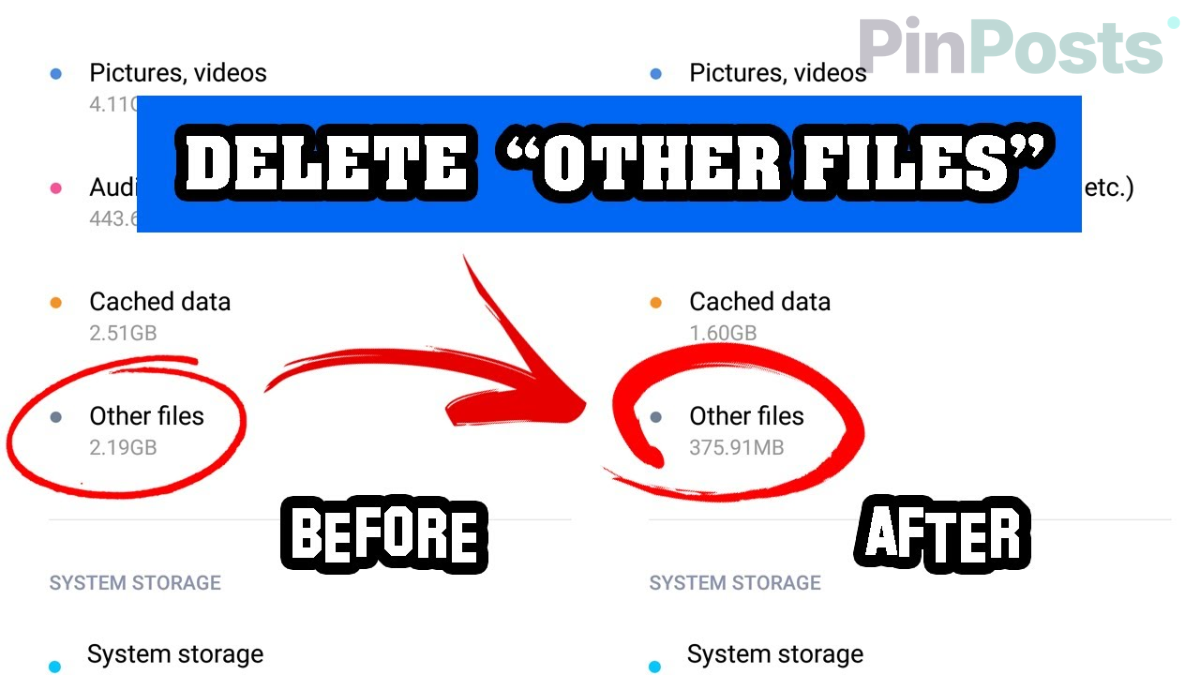
If you’ve checked your Android storage settings and found a huge chunk labeled “Other” that keeps growing no matter what you delete, you’re not alone. This exact problem has been discussed for years on XDA Forums, and there are real ways to shrink it.
What Is “Other” Storage, Really?
“Other” is Android’s catch-all category for files that don’t fit neatly into Photos, Apps, or Videos. It usually includes things like cached files, downloaded files your phone doesn’t recognize, leftover data from apps you’ve uninstalled, and trash/recycle bin files sitting around waiting to be permanently deleted.
Because it’s a mix of so many different things, there’s no single button that clears it all at once. You have to go after each piece separately.
Check Your Recycle Bin and Trash Folders First
This is the one most people miss. Your Gallery app and File Manager app usually have their own separate trash folders, and deleted files sit there for weeks before they’re actually gone, still counting against your storage the whole time.
Open your Gallery app → Trash, and separately check your File Manager app’s own trash if it has one. Empty both if you don’t need anything in them.
Clear App Cache (Not App Data)
Cache files build up over time as apps store temporary data to load faster. Clearing cache is safe and doesn’t delete your logins or settings, unlike clearing app data.
Go to Settings → Storage → Internal Storage, and look for a cached data option to clear it across all apps at once. For a specific app that’s using a lot of space, go to Settings → Apps → [app name] → Storage → Clear Cache.
Turn Off System Logs and Tracing in Developer Options
This one is easy to miss because most people never turn on Developer Options in the first place, but if you have, this is a common hidden cause of the “Other” and “System” categories growing fast. Logging and tracing features record detailed data about what your phone is doing, and that data has to be stored somewhere.
Go to Settings → System → Developer Options, and turn off any logging, tracing, or “bug report” style toggles you don’t specifically need. If you never intentionally turned on Developer Options, you can also just turn the whole thing off.
Check for a Misbehaving App
Sometimes a specific app is the real cause, quietly writing junk data in the background. If your “Other” storage keeps growing fast even right after you clean it up, think about any app you installed recently around the time the problem started, and try uninstalling it to see if that fixes it.
What About “System” Storage Specifically?
“System” is a separate category from “Other,” and it’s worth knowing you can’t directly clear it yourself; it’s reserved for Android’s own operating system files. If it’s grown unusually large, the Developer Options fix above is the most common real cause, not something wrong with your phone.
The short version
- “Other” storage is a mix of cache, unrecognized downloads, leftover app data, and trash files, not one single thing
- Check your Gallery’s trash and your File Manager’s own separate trash folder first
- Clear app cache safely from Settings → Storage, without touching app data or logins
- Turn off system logs and tracing in Developer Options if you ever enabled them
- A recently installed app could be the real cause if the problem keeps coming back fast
- “System” storage is separate and can’t be cleared directly; it usually grows for the same Developer Options reason
Has your “Other” storage been a mystery too? Let us know what actually worked for you in the comments, and check out more Android guides for other storage and settings fixes.