
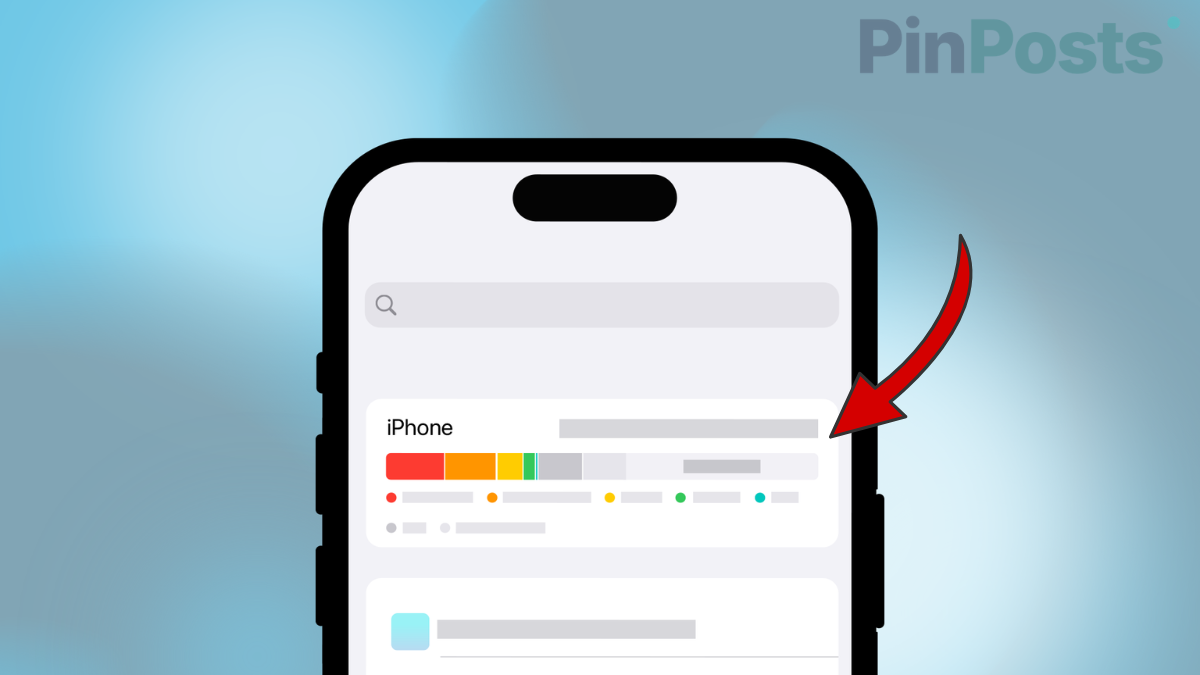
If your iPhone keeps saying “Storage Almost Full,” you don’t have to start deleting photos to fix it. Your phone has a few built-in tools that free up space without touching your pictures at all. Here’s exactly how to use them.
Turn On “Optimize iPhone Storage” for Photos
This is the single best fix, and most people don’t know it exists. It keeps a smaller version of each photo on your phone, while the full-size original stays safely in iCloud. You can still open, view, and share every photo like normal. You just save a lot of space on your phone.
Go to Settings → Apps → Photos, turn on iCloud Photos, then choose Optimize iPhone Storage.
One thing to know: this needs enough iCloud storage to hold your full photo library. Apple gives everyone 5GB free, which fills up fast if you have a lot of photos. If you get a message about iCloud being full, you may need to buy more iCloud storage (it’s usually just a couple of dollars a month) for this to work well.
Offload Apps You Don’t Use (Without Losing Their Data)
“Offloading” an app means your phone removes the app itself but keeps all your data, like your login, settings, and saved information. When you open the app again later, it reinstalls and everything is right where you left it.
Go to Settings → Apps → App Store and turn on Offload Unused Apps. Your phone will now automatically do this for apps you haven’t opened in a while, whenever storage runs low.
Clear Safari’s Saved Website Data
Every website you visit leaves behind small files on your phone to help pages load faster next time. Over months of browsing, this adds up to real storage space, and clearing it doesn’t delete your bookmarks or passwords.
Go to Settings → Apps → Safari and tap Clear History and Website Data.
Check What’s Taking Up Space in Messages
Photos and videos sent through text messages are stored separately from your actual Photos library. If you’ve been in group chats for a while, this can quietly use several gigabytes on its own.
Go to Settings → General → iPhone Storage, tap Messages, and review what’s listed. You can clear old attachments here without affecting your real photo library at all.
Look at Your Storage Recommendations
Your iPhone actually tells you what’s using the most space and suggests one-tap fixes. Go to Settings → General → iPhone Storage and look at the top of the screen. You’ll see a breakdown of every app by size, plus a list of suggestions made specifically for your phone.
If your iPhone has also been running hot or draining fast since the last update, that’s a separate issue with its own fix — see our guide on fixing iPhone overheating on iOS 26.5.2.
The short version
- Turn on Optimize iPhone Storage for Photos — the biggest space saver, and your photos stay safe in iCloud
- Offload unused apps to remove the app but keep its data
- Clear Safari’s saved website data — doesn’t touch bookmarks or passwords
- Check Messages storage for old photo and video attachments
- Check Settings → General → iPhone Storage for personalized recommendations
Have you run into “Storage Almost Full” on your iPhone? Did one of these tips actually work for you, or do you have another trick that saved you space? Drop it in the comments below — we’d love to add real reader tips to this guide.


![iPhone Keyboard Keeps Switching to Numbers While Typing? [The Fix]](https://pinposts.com/wp-content/uploads/2026/07/iOS-26-iPhone-Keyboard-Fix-640x360.png)