Last updated: August 2, 2026
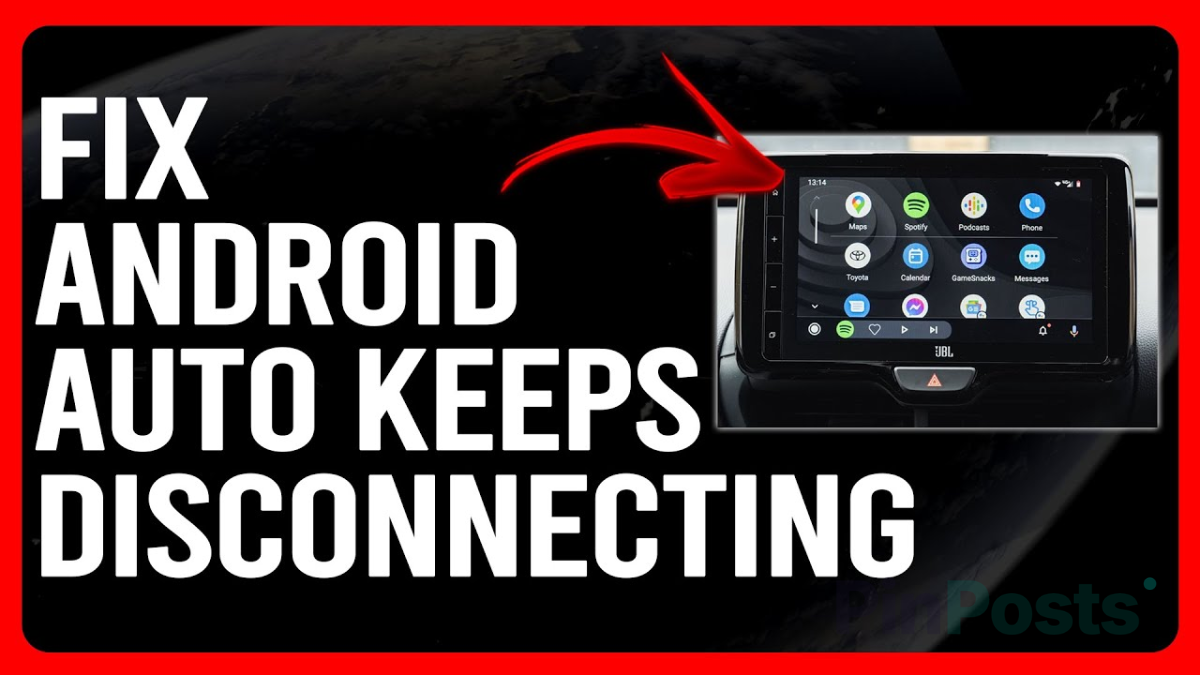
If Android Auto keeps disconnecting on you, especially right after your phone locks, this isn’t random. There’s a real, identified cause, and Google has actually shipped an official fix for it.
Why This Happens (the Real Cause)
Most of these disconnects trace back to a security feature called Advanced Protection Mode. It includes USB Protection, which blocks data and communication through your phone’s USB port the moment your screen locks, specifically to stop unauthorized access if your phone is ever stolen. The problem is that Android Auto also uses that same USB connection, so locking your phone while driving can cut the connection completely.
Turn On “Start Android Auto While Locked” (The Actual Fix)
Google has already addressed this directly. A recent Android Auto update added a setting specifically called Start Android Auto While Locked. Turning this on lets Android Auto keep working through your phone’s lock screen instead of getting cut off by it.
Open the Android Auto app on your phone, go to its settings, and look for Start Android Auto While Locked. Turn it on. Make sure Android Auto itself is updated to the latest version first through the Play Store, since this setting only exists in newer versions.
Change Your USB Configuration to File Transfer
If the setting above isn’t available yet on your phone, or disconnects continue, check your USB configuration next. Go to Settings → Connected Devices → USB (sometimes under Networking), and change the Default USB Configuration from “No Data Transfer” to File Transfer, or select Android Auto directly if that option is listed. Android Auto needs an active data connection over USB to work, and the wrong default setting can quietly block that.
Clear Android Auto’s Cache and Data
Corrupted cache data is a common, boring cause of intermittent app problems, and Android Auto isn’t an exception. Go to Settings → Apps → Android Auto → Storage, and clear both the cache and the data. You’ll need to sign back in and reconnect afterward, but this resolves a real share of disconnect issues on its own.
Check Your Cable and USB Port
Before assuming it’s entirely a software problem, rule out the physical connection. Most intermittent Android Auto disconnects, especially the kind that happen randomly rather than always at the same moment, come down to a cheap or charge-only cable, or a dirty USB port. Use the cable that came with your phone if possible, and check your port for lint or debris.
Keep Everything Updated
Google regularly ships compatibility fixes through both Android Auto app updates and Google Play system updates. If disconnects started suddenly after a specific update, checking for a newer Android Auto version or a pending Play system update is worth doing before anything else.
The short version
- The real cause is usually Advanced Protection Mode’s USB Protection cutting the connection when your phone locks
- Turn on “Start Android Auto While Locked” in the Android Auto app’s settings — this is Google’s actual fix for it
- Change Default USB Configuration to File Transfer if the setting above isn’t enough
- Clear Android Auto’s cache and data through Settings → Apps → Android Auto → Storage
- Rule out a cheap cable or dirty USB port, since many disconnects are physical, not software
- Keep Android Auto and your Play system updates current, since Google ships fixes for this regularly
Did turning on “Start Android Auto While Locked” fix it for you? Let us know in the comments, and check out more Android guides for other connection and settings fixes.